Getting started
What you need
Godot 4.5 or newer. Before every commit the plugin is checked on 4.5.1, 4.6.2 and 4.7.2, the 4.6.2 being a GodotSteam editor build, so a GodotSteam project is covered too.
Installing
- Copy
addons/daelokbase/into your project'saddons/folder. Nothing else from this repository is needed:addons/daelokbase_tests/is the test hook,data/and.daelokbase/are the example project. - Project, Project Settings, Plugins: enable DaelokBase.
- A Data tab appears in the workspace bar, beside 2D, 3D and Script.
The plugin makes one folder in the project, res://.daelokbase/, the first time it needs it. The folder holds a .gdignore, so nothing in it is imported or reaches an exported build. Keep it in version control: it carries the metadata your collections are described by.
If the project has data already
Any class_name X extends Resource script with .tres files in the project is a collection already. The Data tab lists it with no setup, its entries open in the form and the table, and its schema shows read-only on the Schema tab until you press Take over fields, which wraps the script's exports in a #region DaelokBase block the plugin manages from then on. Nothing outside that region is ever touched: your functions, your other members and your comments stay as they are.
Its entries are found wherever they are: every file of the class, in every folder and the folders under them. Its folder is the deepest one holding them all, and a new entry goes beside the most of them. Nothing is written until you edit something.
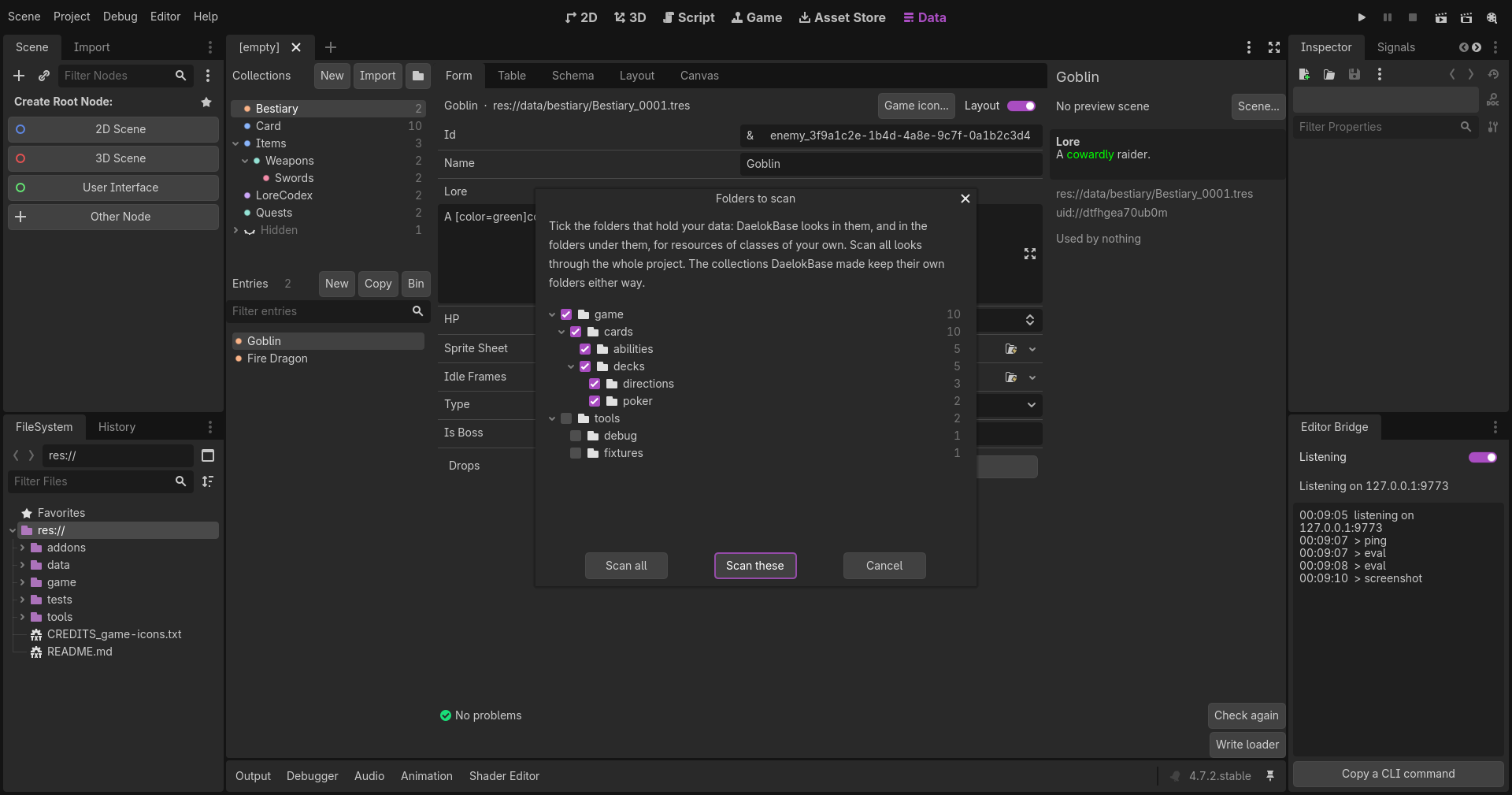
Which folders. The first time the Data tab opens in a project with resources of classes of your own, it asks which folders hold your data. Every folder holding some is listed, with how many and of which classes; a folder ticked is scanned with the folders under it. Scan all looks through the whole project, which is also what happens until you choose. A class of your own outside the folders scanned is left out, unless its script is in one. The collections DaelokBase made keep their own folders either way. The folder button beside Import, or a right-click on the tree, opens the choice again. It is kept in res://.daelokbase/project.json.
Hide is on the right-click menu of a collection: the collection goes into a folded Hidden group at the bottom of the list, with the collections nested in it, and leaves the canvas and the Problems panel. Show on the same menu, or Show all on the Hidden group's, brings it back. Use it for resources of tools and tests you do not want to see among your data.
A first collection
- New, beside Collections. Give it a name (
Relic) and a folder (res://data/relics). The dialog shows what it will make: a classRelicinres://data/relics/relic.gdwith two fields, anid(a StringName key that names each file) and aname(a String shown in lists). - The script is written, the project scanned, and the collection appears in the tree.
- On the Schema tab, add the rest of the fields: a number with a unit, an enum, a picture, a list, a group of rows. Apply writes them into the class and shows the plan first.
- New, beside Entries, makes an entry file, saved at once so it has a UID, and opens it in the form. Fill it in: every change is saved as you make it and goes through Ctrl+Z.
- Copy duplicates the entry shown, rows and all. Bin moves its file to the OS bin.
The key is typed by hand until you give the id field a mode on the Schema tab: a slug of another field, a counter, or a uuid. From then on New fills it in, and the file is named after it.
Loading the data in the game
Write loader, under the views, writes res://data/relics/relic_db.gd, a class_name RelicDb:
RelicDb.all()                    # every Relic in the folder and the folders under it, loaded once and kept
RelicDb.get_by_key(&"frog_idol") # by the key field
RelicDb.keys()
RelicDb.get_by_file("frog_idol") # by the file's name
RelicDb.copy_of(relic)           # a duplicate to change at runtime, rows and all
RelicDb.refresh()                # forget the loaded entries
It lists the folder and the folders under it with ResourceLoader.list_directory, which sees through the renamed files of an exported build, and keeps only the entries of the class itself, not those of a class extending it. For a class of your own whose files are spread about, it looks in the folders that hold them and sits beside the most of them. It is your file: it needs nothing from the addon, is regenerated only when you press the button again, and uninstalling the plugin changes nothing about it or the data.
Write loader offers two other kinds on the same menu, both yours in the same way:
- Key constants writes
relic_keys.gd, aclass_name RelicKeyswith a constant a key (RelicKeys.FROG_IDOLis&"frog_idol") and every file by its uid, loaded the first time it is asked for:RelicKeys.get_by_key(RelicKeys.FROG_IDOL),keys(),all(). Nothing is read that is not used, and a key mistyped in your code is caught by the script editor. Write it again when entries are added; the status line names any constant gone since the last time, since code using it will no longer compile. - Catalog writes
relic_catalog.tres, one resource holding every entry, and its scriptrelic_catalog.gdwithget_by_key()andkeys():preload("res://data/relics/relic_catalog.tres").get_by_key(&"frog_idol"). Loading it loads them all. Write it again when entries are added.
Where next
The Data tab walks through every view. Concepts says what the files are and what goes where.